AL Zebra ZPL Label Manager - User guide
How to set up and use the app in Business Central.
1. Concepts in one minute
AL Zebra ZPL Label Manager prints native ZPL labels on Zebra printers directly from Business Central, without Windows drivers or external label software. You upload a ZPL template with <TAG> placeholders; the app fills the tags with data from the document you print from (items, lots, serials, orders, shipments) and queues the result in the AL Bridge job queue. The local AL Bridge service delivers it to the printer by IP.
Three building blocks:
- Template: a
.zplfile with placeholders, uploaded once and reused. - Tags: the mapping between label fields and the placeholders in the template.
- Printer: the Zebra device, reached by the AL Bridge service via TCP/IP or LPR.
2. Prerequisites
- AL Bridge installed, with its local service configured and running (it is the bridge between the cloud and your LAN).
- A Zebra printer supporting ZPL, reachable from the machine running the Bridge service.
- The AL Zebra ZPL Label Manager license (a 30 day trial starts with the setup).
- Optional: AL GS1 for compliant GS1-128 (EAN-128) barcodes.
3. Setup
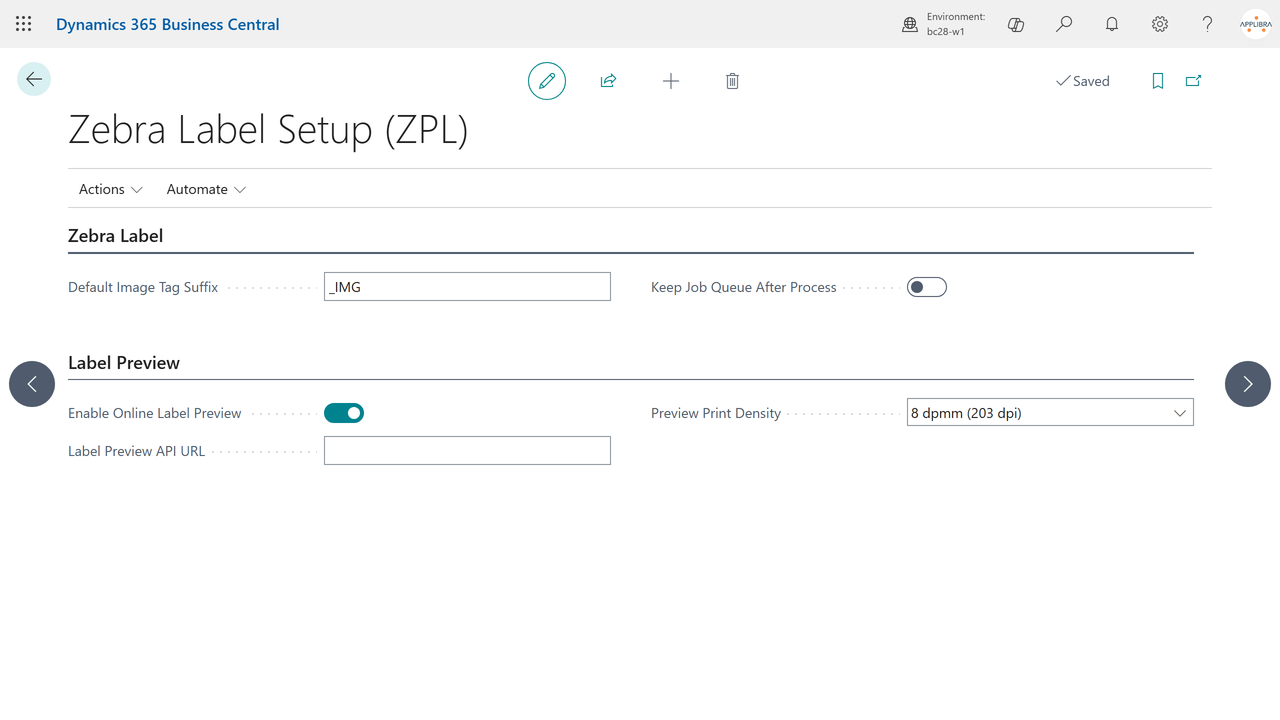
Search for Zebra Label Setup (ZPL) in Tell Me, or open the AppLibra hub (Shift+F12, Explore more roles, AppLibra) and use the Zebra Labels group. The setup pages are also listed in Manual Setup.
- Zebra Label Setup: general settings. The Default Image Tag Suffix (default
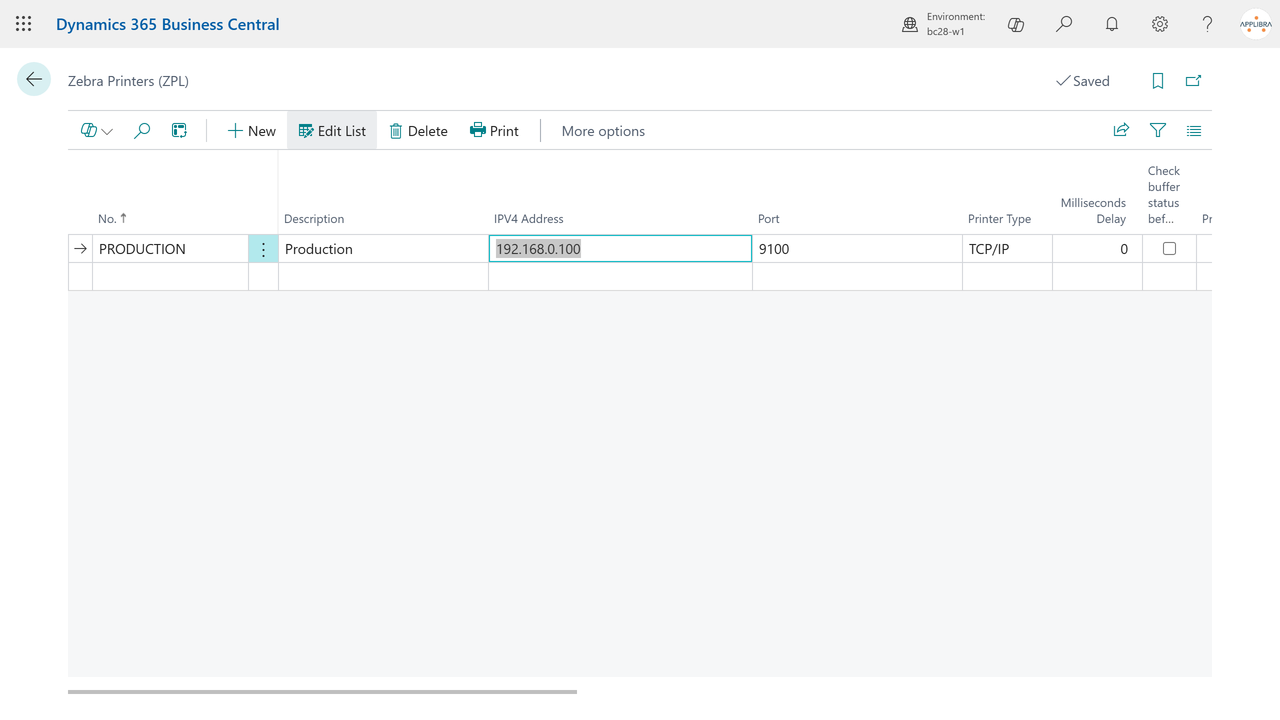
_IMG) builds image tag codes; Keep Job Queue After Process keeps the Bridge queue entries after printing, useful while testing. - Zebra Printers: one record per printer, with IPv4 address, port (or LPR queue name), the number of side-by-side label columns for multi-up printing and the ZPL framing commands (defaults
^XA,^XZ,^LH,^PQare already filled). Set the Print Density of the printer head (for example 8 dpmm for 203 dpi): it is used to render the online label preview. - Zebra Label Templates: upload the
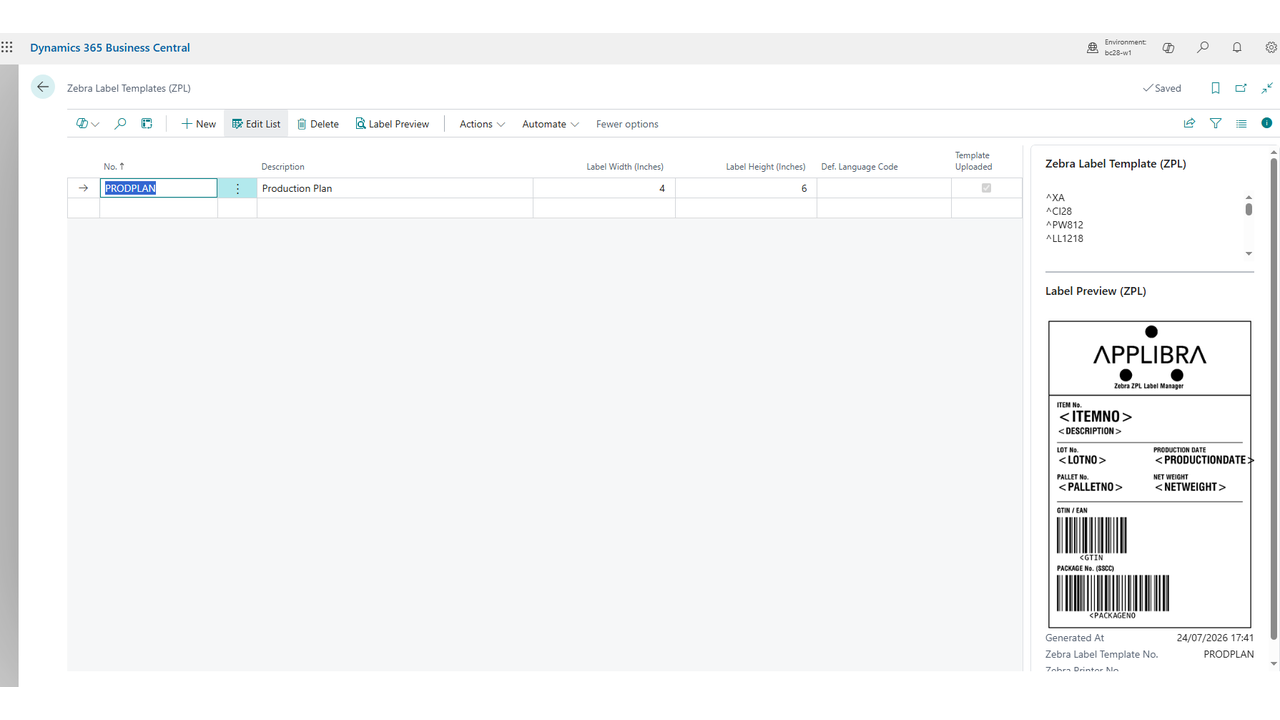
.zplfiles. Set Label Width and Label Height in inches: they describe the physical label and are used by the online preview. - Zebra Label Tags: review the mapping between the label fields and the
<TAG>placeholders. Update Tags adds tags for new fields keeping your customizations. - Zebra Label Images (optional): associate PNG images with field values; the app converts them to the ZPL
.grfformat used at print time. - Zebra Label Template Selection: default printer and template per label type, optionally per user.
Permissions: assign ALPZL-USER to the people who print and ALPZL-ADMIN to the people who configure. Users also need the AL Bridge permission set for the job queue.
4. Daily use
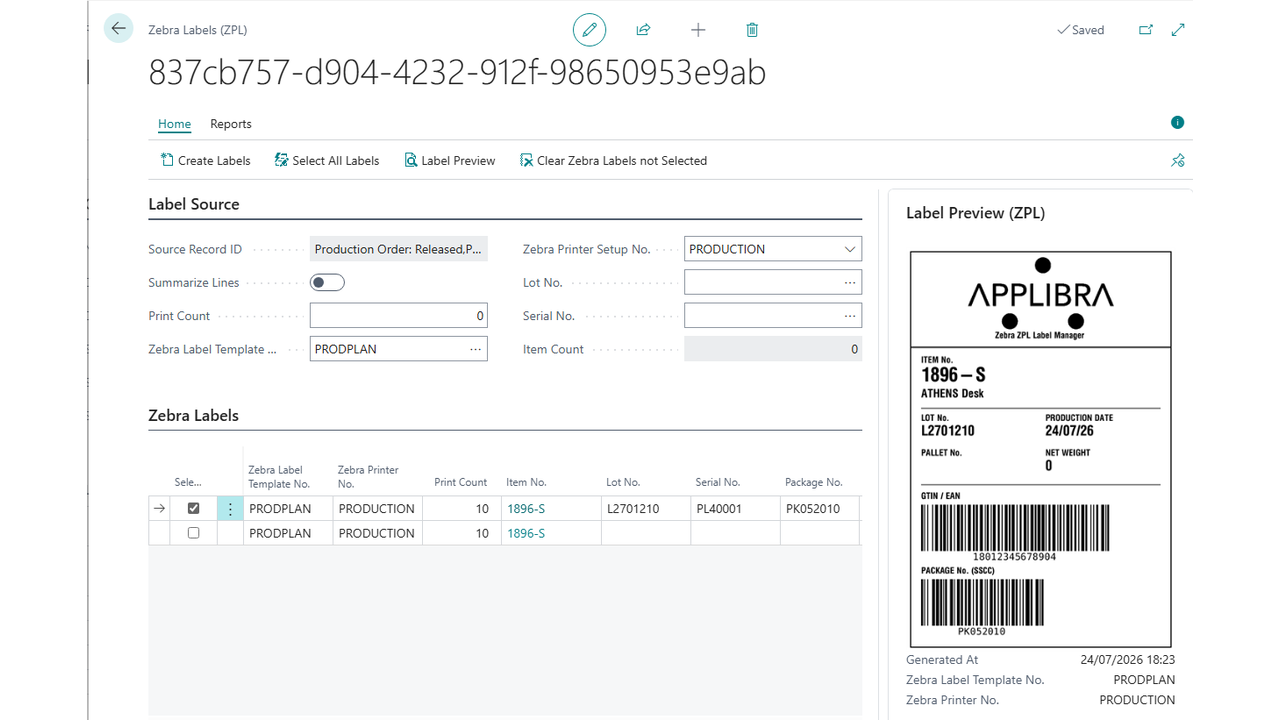
Open the source document (released production order, sales or purchase order, warehouse receipt or shipment, posted documents) and choose Print Zebra Labels. The Zebra Labels worksheet opens with one line per label:
- review or edit the values (lot, serial, package, quantities, descriptions);
- set the print count, select the lines and choose Print Zebra Labels to queue them;
- the AL Bridge service picks the queue up and prints, driverless.
With multi-up printers the label block is duplicated per column and the copy count is adjusted automatically.
Online label preview
From the worksheet, Label Preview renders the selected line as a PNG image in the FactBox, exactly as the printer would print it, using the Labelary online service.
The preview is opt-in: enable it in the Zebra Label Setup page first. The complete label content in ZPL format, including the business data printed on the label, is sent to the external Labelary service (labelary.com). If you prefer to keep the data inside your network, point the Label Preview API URL to a self-hosted Labelary instance. The preview needs the printer Print Density and the template Label Width and Height in inches.
If you work offline or the service is not reachable, printing is not affected: the preview simply reports that the service cannot be reached.
5. Troubleshooting
- Nothing prints: check the AL Bridge service on the local machine and the printer IP and port in Zebra Printers. Keep Job Queue After Process helps inspecting the queue.
- A tag is printed literally (for example
<IT>): the tag has no value for that line or the tag code differs between the template and the Zebra Label Tags page. - Preview error about width or height: fill Label Width and Label Height (inches) on the template; the maximum size accepted by the public service is 15 x 15 inches.
- Images missing in the preview: convert the images to
.grffirst (Zebra Label Images, Convert Image to .grf); the conversion runs through the local Bridge service.